
Printing documents is a routine task in almost every office. However, when you need to print hundreds of Word documents, Excel spreadsheets, PowerPoint presentations and images, opening each file individually can become a frustrating and time-consuming process.
Whether you work in a corporate office, educational institution, printing center, government department or business organization, handling large printing jobs manually can reduce productivity.
Fortunately, Batch File Printing Software can make this process much easier.
Instead of opening every document separately and clicking the Print button repeatedly, batch printing software allows you to select multiple files and send them for printing through a single workflow.
In this guide, we will explain how to print multiple files at once, the benefits of batch printing software and how Technocom Solutions can help simplify your everyday printing requirements.
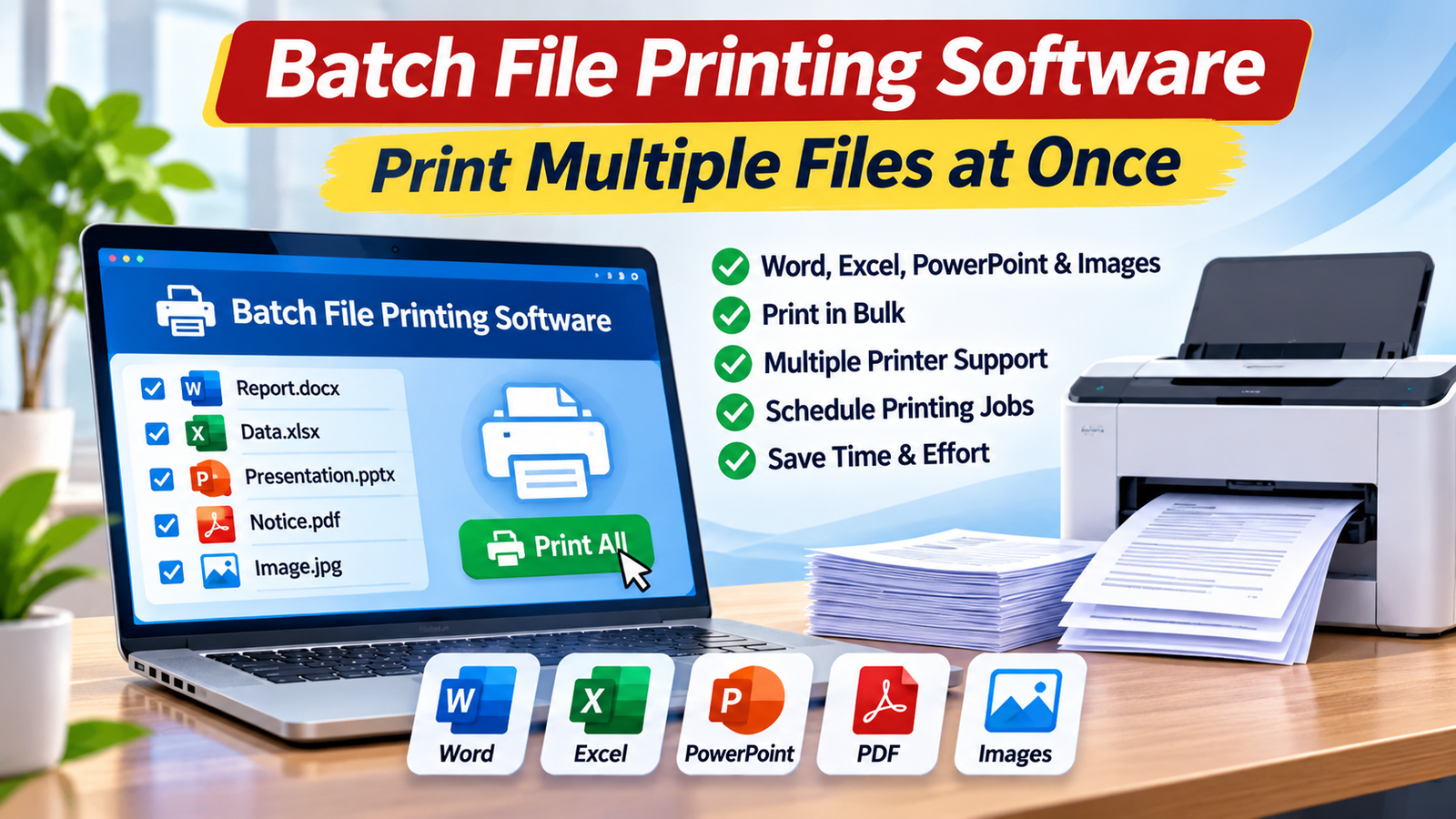
What Is Batch File Printing Software?
Batch File Printing Software is a utility designed to print multiple documents and image files without opening them individually.
Traditional printing requires users to open a file, select a printer, configure print settings and initiate printing. This process must be repeated for every document.
When you have dozens or hundreds of files, this can consume a significant amount of time.
Batch printing software simplifies this process by allowing users to select multiple supported files, configure printing preferences and process them together.
Depending on the software, users may also be able to schedule printing jobs, select multiple printers and monitor folders for new files.
Why Do You Need Software to Print Multiple Files at Once?
There are several situations where batch printing can make everyday office work easier.
1. Save Time on Repetitive Printing Tasks
Imagine receiving 100 Word documents that need to be printed for an office meeting.
Opening each file individually and printing it can be repetitive.
With batch file printing software, you can select multiple documents and process them together, reducing repetitive manual work.
2. Print Different File Formats
Businesses often work with different document formats, including:
- Microsoft Word documents (DOC and DOCX).
- Excel spreadsheets (XLS and XLSX).
- PowerPoint presentations (PPT and PPTX).
- HTML and XML files.
- Images such as JPG, PNG, GIF and TIFF.
A suitable batch printing utility can help process multiple supported file formats through one application.
3. Simplify Large Printing Jobs
Schools, colleges, offices and printing departments frequently need to print large collections of documents.
Batch printing software makes it easier to organize these jobs without manually opening every file.
4. Reduce Manual Work
When printing is a regular responsibility, repetitive actions can take up valuable working hours.
Automating the file selection and printing workflow can help employees focus on other important tasks.
5. Manage Multiple Printers
Some organizations use multiple printers to handle large printing requirements.
Specialized broadcast batch printing software can distribute printing jobs across multiple printers, helping organizations manage their printing workflows.
How to Print Multiple Files at Once in Windows
If you regularly print multiple documents, using dedicated batch printing software can simplify the process.
Here is a general workflow for printing multiple files together.
Step 1: Organize Your Documents
First, collect all the documents and images you want to print.
You can organize them into folders based on their type or printing requirements.
For example:
- Office reports.
- Excel records.
- PowerPoint presentations.
- Images and graphics.
- Business documents.
Step 2: Select the Files
Open your batch printing application and add the documents you want to print.
Depending on the software, you may be able to add individual files, multiple files or folders.
Step 3: Select Your Printer
Choose the printer connected to your computer.
If your application supports multiple printers, select the appropriate printer configuration for your printing job.
Step 4: Configure Printing Settings
Before starting the job, review your printing preferences.
These may include:
- Paper size.
- Page orientation.
- Number of copies.
- Printer selection.
- Page settings.
Available options depend on your printer and software.
Step 5: Start Batch Printing
Once you have checked the files and printer settings, start the printing process.
The software will process the selected files and send them to the printer according to its supported functionality.
Tip: Always test a small batch first to confirm document formatting, page orientation and printer settings before processing a large collection.
Batch Files Printing vs Broadcast Batch Printing
Technocom Solutions offers two specialized utilities for users who need to print multiple files.
Let’s understand the difference.
1. Batch Files Printing
Best for: Printing multiple supported documents and images through a batch-processing workflow.
Product page: https://www.technocomsolutions.com/batch-printing.html
Batch Files Printing is designed to print multiple printable files and images without requiring users to open each file individually.
According to the Technocom Solutions product catalogue, it supports several file formats, including:
- DOC and DOCX.
- XLS and XLSX.
- HTML and XML.
- PPT.
- JPG and GIF.
- PNG and TIFF.
- ICO and PSD.
This utility can be useful for office professionals, educational institutions, administrative departments and businesses that regularly handle multiple document formats.
Instead of repeating the same printing operation for every file, users can manage multiple files through a batch printing workflow.
2. Broadcast Batch Printing
Best for: Printing multiple files across multiple printers and scheduling printing jobs.
Product page: https://www.technocomsolutions.com/broadcast-printing.html
Broadcast Batch Printing is designed for users who need more advanced printing capabilities.
It supports printing multiple files to multiple printers through a single application.
Its listed features include:
- Printing multiple files to multiple printers.
- Batch processing of selected files.
- Scheduling printing for a future date and time.
- Directory Watcher functionality.
- Hot Folder support.
- Support for multiple document and image formats.
One particularly useful feature is Directory Watcher.
It regularly monitors a specified directory for files, helping users manage printing workflows involving incoming documents.
The scheduling feature also allows users to plan printing jobs for a future date and time.
This can be especially useful for organizations with regular printing requirements.
How Does Broadcast Batch Printing Work?
Here is a simple overview of the workflow.
Step 1: Run the Software
Install and launch Broadcast Batch Printing on your Windows computer.
Step 2: Add Files
Select or add the documents and images you want to print.
Step 3: Configure Printers
Choose the required printers and configure the available printing settings.
Step 4: Schedule Your Printing Job
If you do not want to print immediately, use the scheduling feature to select a future date and time.
Step 5: Use the Hot Folder Option
You can also use the Hot Folder or Directory Watcher functionality to monitor a specified folder for files.
Step 6: Start Printing
Start the printing process and allow the software to process the selected files.
Who Can Benefit from Batch Printing Software?
Batch printing tools can be useful for many types of organizations.
Corporate Offices
Corporate offices regularly print reports, invoices, business documents, spreadsheets and presentations.
Batch printing can simplify these repetitive activities.
Schools and Colleges
Educational institutions frequently print assignments, worksheets, examination materials, notices and administrative documents.
Printing multiple files together can help reduce manual effort.
Printing Centers
Printing businesses often receive documents in different formats from multiple customers.
Batch printing software can help organize and process these printing jobs.
Government Departments
Government offices may handle large collections of reports, applications, forms and administrative documents.
Dedicated printing utilities can help streamline document printing workflows.
Data Entry and Back-Office Teams
Employees who work with large collections of Word and Excel files may benefit from tools that simplify repetitive printing operations.
What Should You Check Before Choosing Batch Printing Software?
Before selecting a batch printing utility, consider these important factors.
1. Supported File Formats
Check whether the software supports the formats you regularly use, such as DOC, DOCX, XLS, XLSX, PPT, PPTX and common image formats.
2. Multiple File Processing
Look for software that allows you to add multiple documents or folders instead of selecting files individually.
3. Multiple Printer Support
If your organization uses multiple printers, check whether the software can distribute printing jobs across different printers.
4. Scheduling Options
Scheduling can be useful when you want printing jobs to run at specific dates and times.
5. Folder Monitoring
Directory monitoring or Hot Folder functionality can help automate workflows where new documents regularly arrive in a specified folder.
6. Windows Compatibility
Check the software’s supported Windows versions and system requirements before purchasing.
7. Trial Availability
Whenever a free trial is available, test the software using sample files and your actual printer configuration before purchasing.
Why Choose Technocom Solutions for Batch File Printing?
Technocom Solutions provides dedicated printing utilities for individuals and organizations that regularly process multiple documents and image files.
Its two batch printing products address different requirements.
Batch Files Printing is designed for printing multiple supported files through a batch-processing workflow.
Broadcast Batch Printing adds features such as multiple printer support, scheduling and Directory Watcher functionality.
These tools can help users reduce repetitive printing activities and manage larger printing workloads more efficiently.
Explore the products:
Frequently Asked Questions (FAQs)
1. How can I print multiple files at once?
You can use batch file printing software to select multiple supported documents and images, configure printer settings and process them together without opening every file individually.
2. Can I print multiple Word and Excel files together?
Yes. Batch printing utilities can process supported Word and Excel formats, including DOC, DOCX, XLS and XLSX.
3. Can I print multiple images at once?
Yes. Technocom Solutions’ batch printing utilities list support for image formats such as JPG, GIF, PNG and TIFF, along with other supported formats.
4. Can I print files using multiple printers?
Yes. Broadcast Batch Printing is designed to print multiple files across multiple printers.
5. Can I schedule printing jobs?
Yes. Broadcast Batch Printing provides a scheduling feature that allows users to schedule printing for a future date and time.
6. What is a Hot Folder in batch printing?
A Hot Folder is a designated directory monitored by software for incoming files. In a supported printing workflow, new files placed in that folder can be detected for printing.
7. Is batch printing software useful for offices?
Yes. It can be useful for offices that regularly print large collections of reports, spreadsheets, presentations, forms and images.
Final Thoughts
Printing multiple documents individually can consume unnecessary time, particularly when working with large collections of files.
Batch File Printing Software provides a convenient way to simplify repetitive printing tasks and improve office productivity.
Whether you need to print multiple Word, Excel and image files or distribute printing jobs across multiple printers, the right utility can make the process easier.
Technocom Solutions offers Batch Files Printing and Broadcast Batch Printing to help users manage these requirements.
Ready to simplify your printing workflow?
Explore Batch Files Printing and Broadcast Batch Printing from Technocom Solutions.
