

All in One PDF Writer 2.5
(Screenshots & Help File) |
All in One PDF Writer is a pdf creator tool for create PDF files from all printable files and all images. It convert word to pdf, convert excel to PDF, convert ppt to pdf, convert image to pdf, convert xml to pdf etc without using Adobe Acrobat Software or other third party tool.
please contact us for: Custom PDF Solution
|
Step 1: Registration
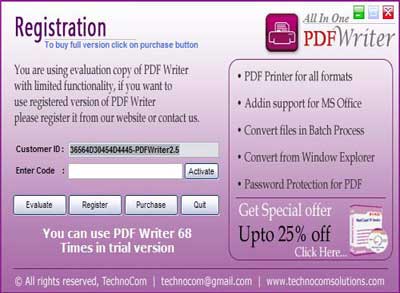
The screen shown as below will display in un-registered version every time.
Register : for registering the "All in One PDF Writer v2.5" please send us your "Customer Id" from the above window by click "Get Registration Key" button. After confirmation of payment we provide you an "Activation code" that registers your "All in One PDF Writer v2.5".
Buy: for payment for "All in One PDF Writer v2.5", please click "Buy" button in the window like above or send to us cheque/DD in favour of "Technocom" payable at Delhi.
Activate: Please enter your name in "Register to : " textbox and "Registration Key" which we provide you when you have bought the tool in the activation code text field and click Activate button. |
Download Links |
 |
 |
| Info |
File Size
10.75 MB |
Limitation
100-uses trial |
Price
$ 24.95 |
| Buy |
 |
| Support |
 |
| We Accept |
 |
| How to use All in One PDF Writer v2.5 |
Batch Processing:
Add Files from all Path:
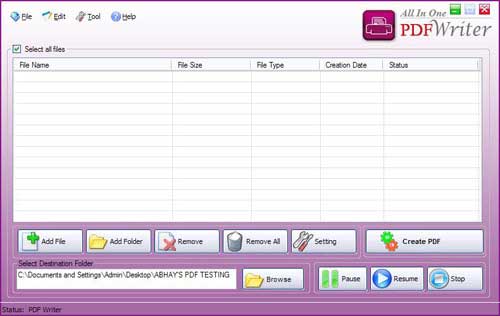
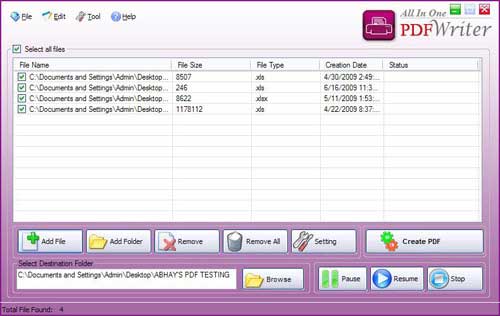
- Run this All in One PDF Writer v2.5. figure1.2
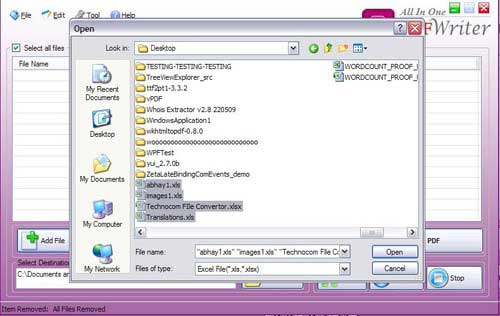
- Add document files which you want to convert in pdf files, click "Add File" button. figure 1.3
- Select files from different files path. figure 1.4
|

figure 1.2

figure 1.3

figure 1.4
|
Add Files from all Path:
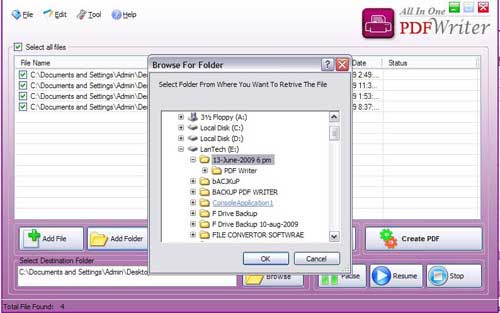
- Add all files from a selected directory or folder. figure1.5
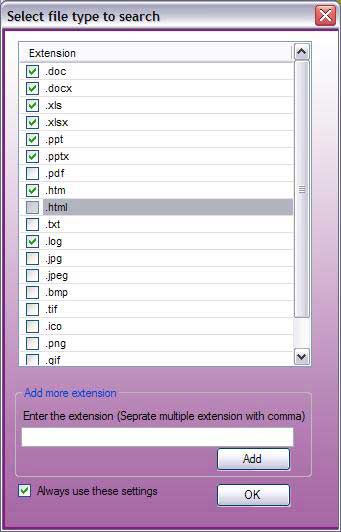
- when you select a directory and click "ok" then a file type dialog will be shown as figure 1.6
- select file types by their extension such as (.doc, .ppt, .docx, .xls etc) and you can add your own extension for the files search in the selected directory and click "ok" button.
|

figure 1.5

figure 1.5

figure 1.6
|
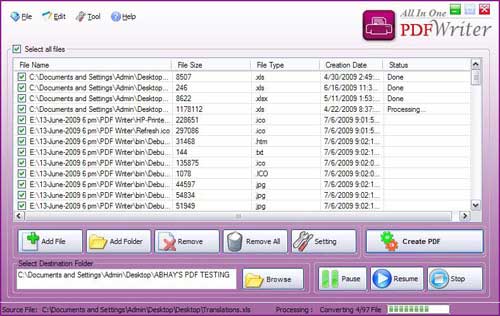
| It will fill all the files of selected file types from the selected directory as shown below, now you are ready to create PDF files from all selected files in the given list. if you want to change security settings, PDF default settings please see settings & security section. |
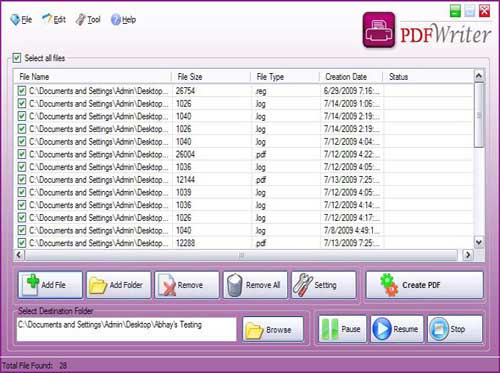
figure 1.7

figure 1.8 |
General Settings:
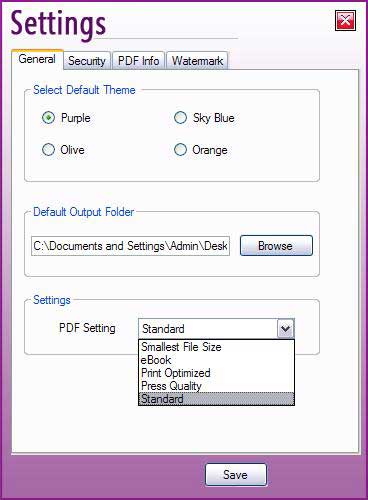
- Click "Setting" button to open settings dialog figure1.9
- Select "General" tab where you can select "Theme" option, set "Default output Folder", PDF file size settings. in figure 1.9
|

figure 1.9 |
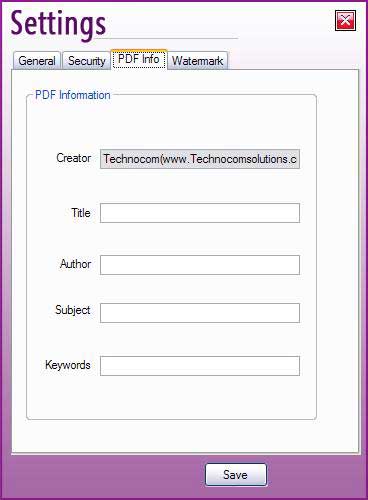
- Select "PDF Info" tab where you can Add additional information for all PDF Files created by "All in One PDF Writer v2.5". figure 1.10
- Add Creator Information, Title of PDF file, Author's Name, Subject and Keywords.
|

figure 1.10 |
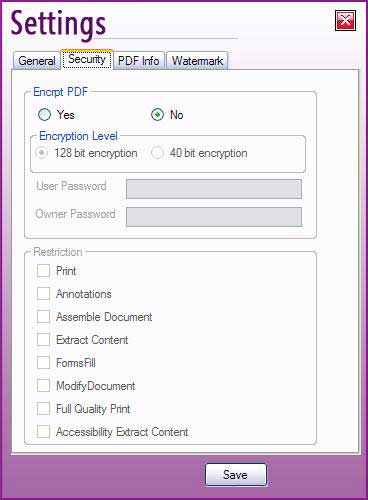
Security Settings:
- Select "Security" tab where you can select Encryption Level.
- Set User Password and Owner Password.
- Restrict from Printing, extract content from PDF files, Modify Document etc.
|

figure 1.11 |
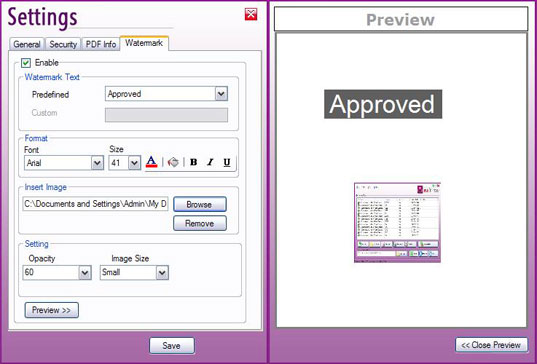
Water-mark Settings:
- Select "Watermark" tab where you can select water-mark to insert in PDF files creation. There are 2 types of water-mark.
- "Custom Text" as a water-mark.
- Image as a water-mark.
- You can select font settings, back color, fore color for text watermark and Image size for Image watermark. figure 1.12
|

figure 1.12 |
MS Word To PDF:
- "All in One PDF Writer" is fully compatible with all versions of MS Office.
- It creates ribbon in Word 2007 and Menu in Older Versions.
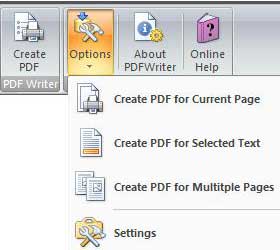
- you can create PDF file of current page, selected text and multiple pages from open word document.
- Create PDF file of open word document.figure 1.13 & figure 1.14
|

figure 1.13 |
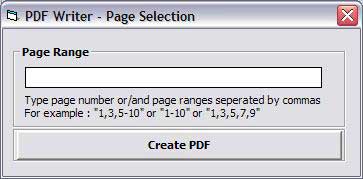
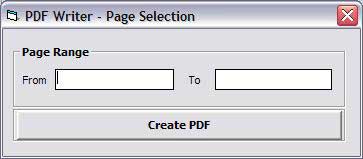
| you must pass the page range if you want to create a PDF file of selected page range. |

figure 1.14 |
MS Excel To PDF:
- "All in One PDF Writer" is fully compatible with all versions of MS Office.
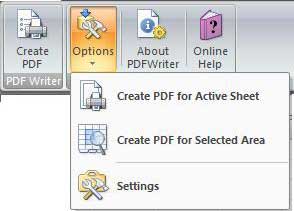
- It "Create PDF" file for Active Sheet & "Create PDF" for Selected Area.
- Create PDF file of open excel document.figure 1.15
|

figure 1.15 |
MS PowerPoint To PDF:
- "All in One PDF Writer" is fully compatible with all versions of MS Office.
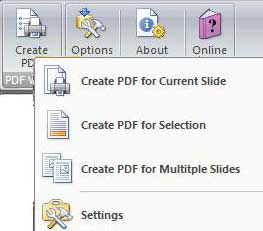
- It "Create PDF for Current Slide".
- It "Create PDF for Selection" in slide of PowerPoint file.
- It "Create PDF for Multiple Slides" & slides range you have to pass in slide range dailog. figure 1.17
|

figure 1.16

figure 1.17
|
Create PDF File from Context Menu:
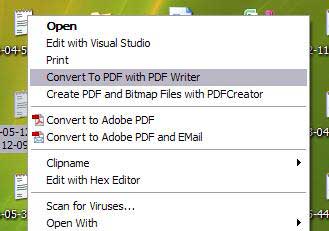
- "All in One PDF Writer" can create "PDF files" from explorer context menu.
- Select any number of files and click "Convert to PDF with PDF Writer" from explorer context menu as shown below.
|

figure 1.18 |
| |
|
|